
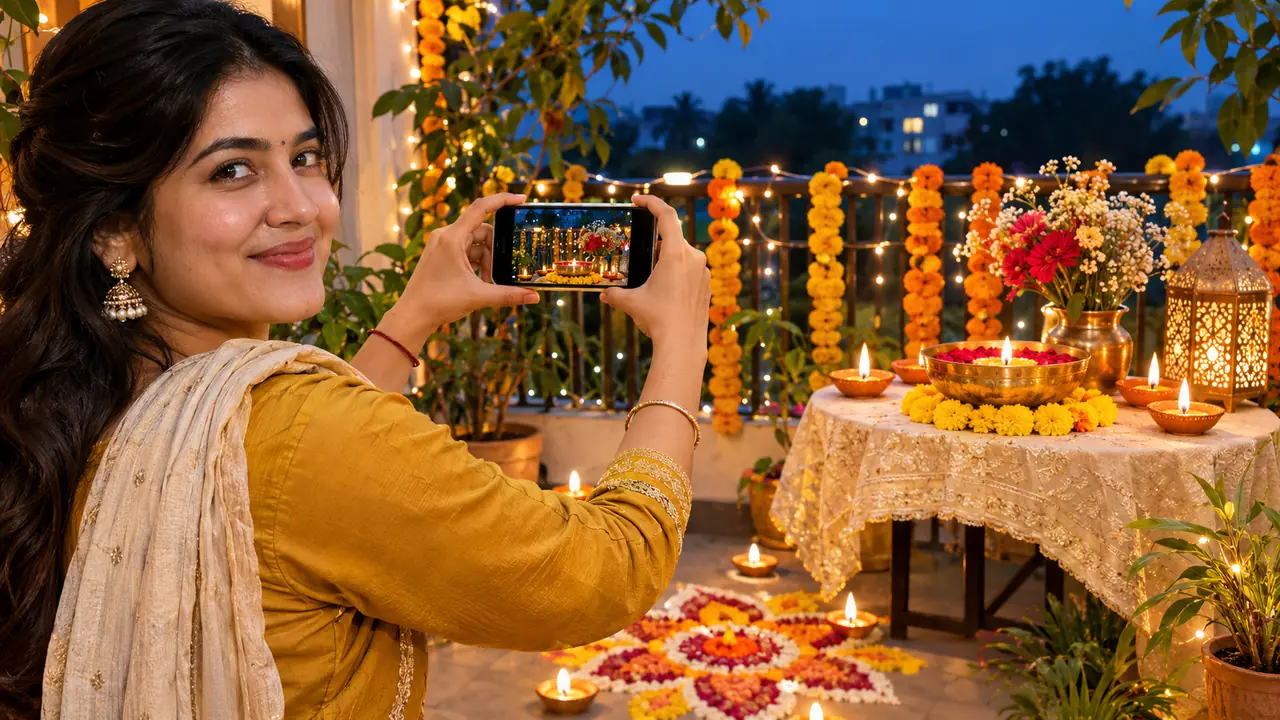
Diwali Instagram post AI photo prompt is the starting point for this simple guide. I keep the first scene clear so the result is easier to check.
A festive post usually needs one clear idea. When I add too many lamps, products and words, the image feels crowded before the caption is even read. A clean subject with empty space gives the post a better starting point.
This Diwali Instagram post AI photo prompt is made for creators, small shops and personal pages. It creates a festive image without adding fake text.
Copy the creator prompt
Create a polished photorealistic vertical 4:5 Diwali Instagram image for an Indian creator or small festive brand. The main subject is one sharp brass diya placed on a simple terracotta plate, with a few marigold petals and one small box of sweets on a warm wooden table. Use a soft saffron and deep maroon colour palette, a clean cream wall and a few out-of-focus fairy lights in the distance. Leave a large uncluttered area in the upper left and a little space on the right for a caption added later. Use a close 50mm product-photo composition, realistic brass texture, a small natural flame, accurate reflections, soft side light, gentle shadow under the plate and a premium but friendly Indian home mood. Keep the diya and flame crisp while the background remains softly separated. Make the final image ready for a feed post in 4:5 and easy to crop to 9:16. Do not generate any words, letters, price, logo or watermark inside the image. No extra diyas, random products, oversized flames, dirty table, harsh glare, fake text, blur on the subject or cartoon illustration.Use the prompt before adding text
Generate the clean image first in ChatGPT or Gemini. Add your caption in Canva or your normal design tool. Image generators can make letters look broken, so keep all important words outside the generated image. Use 4:5 for a feed post. Create a separate 9:16 crop for a story.
Make the post easier to read
Keep one main object. If the diya is too small, ask for a close crop. If the empty space disappears, write keep the upper left area clear and free of objects. Use one colour family such as saffron, maroon and gold instead of many bright colours.
Useful creator links
For a Diwali shop poster, see our Diwali sale poster prompt. For a family post, try the Diwali family prompt. Google’s official Gemini guide lists current image features.
Test the post like a real creator
Before adding a caption, view the image on a phone. The diya should still be visible when the image is small. If the subject feels tiny, ask for a closer crop. If the empty area is not clean, repeat the words “leave the upper left corner free of objects.”
I make one feed crop and one story crop instead of forcing one image into every place. The feed version can stay 4:5. The story version can be 9:16 with the subject in the middle. Keep the greeting outside the generated image so it remains easy to read.
Keep the brand light
A small colour family is enough for a creator post. Saffron, maroon and gold work well together. Add your logo later and keep it away from the diya flame. The image should first feel useful and festive, not like a crowded advertisement.
Read the caption on the phone before you publish. Keep the first line simple and let the image carry one clear idea. If you need a product price or date, place it in the design tool, not inside the generated image. This keeps every word sharp.
Plan the post before generating the image
A clean festive image is only the first part of a useful creator post. Before I open the image tool, I decide where the image will be used. A feed post needs a 4:5 crop. A Story or Reel cover needs 9:16. A product card may need more empty space on one side. Writing this down first stops the subject from getting cut later.
- Choose one message: greeting, product, invitation or personal memory.
- Choose one main object and one supporting detail.
- Keep the face, diya or product away from the crop edge.
- Reserve clear space for text added in Canva.
- Make separate feed and Story crops instead of stretching one file.
Never ask the image generator to write your offer, date or logo. Broken letters make a post look unfinished. Generate a clean background, then add the words in a design tool where the font and spacing stay under your control.
Use different layouts for different creator needs
For a personal Diwali greeting, keep one diya, warm light and a calm empty corner. For a clothing shop, replace the sweet box with one folded product and ask for a clear front view. For a food creator, keep the food in the centre and use a soft festive background. For a service page, leave more empty space for a short headline and a call to action. The visual mood can stay festive while the purpose changes.
Keep text space truly usable
Empty space is not just a blank wall. It should have even light, low contrast and no lamp flame behind the words. If the top left area looks busy, ask for a plain cream wall with soft bokeh far in the background. If the product touches the edge, request a little breathing room around it. Check the image on a small phone because tiny details disappear in the feed preview.
Colour and lighting checks
Choose two or three colours before you generate. Saffron, maroon, cream and brass give a warm Indian festive look. Too many bright colours can pull attention away from the subject. The diya flame should create a believable warm glow on nearby objects. If the whole frame becomes orange, ask for a neutral white balance with warm light only near the flame.
A small publishing checklist
- Open the image on a phone before adding the caption.
- Check that the main object is clear at thumbnail size.
- Keep any price, date or offer outside the generated image.
- Export the feed image in 4:5 and the Story cover in 9:16.
- Write useful alt text that describes the actual scene.
Simple caption structure
Start with one short line that says what the image is for. Add one helpful detail, such as where the viewer can use the template or how to add their own text. End with a clear but honest action. “Save this Diwali layout for your next post” is better than making a promise about reach or sales.
FAQ for creators
Can I use the same prompt for a shop and a personal page?
You can keep the lighting idea, but change the main object, empty space and caption goal. A shop post needs a clean product view. A personal post needs a warmer human feeling.
Why does my logo look wrong?
Image generators often distort logos and letters. Add the logo later in Canva or your normal editor. This also lets you move it when the crop changes.
Should I add a lot of diyas?
Usually no. One clear diya gives the viewer a strong focus. Add a few soft lights in the background only when they do not hide the subject.
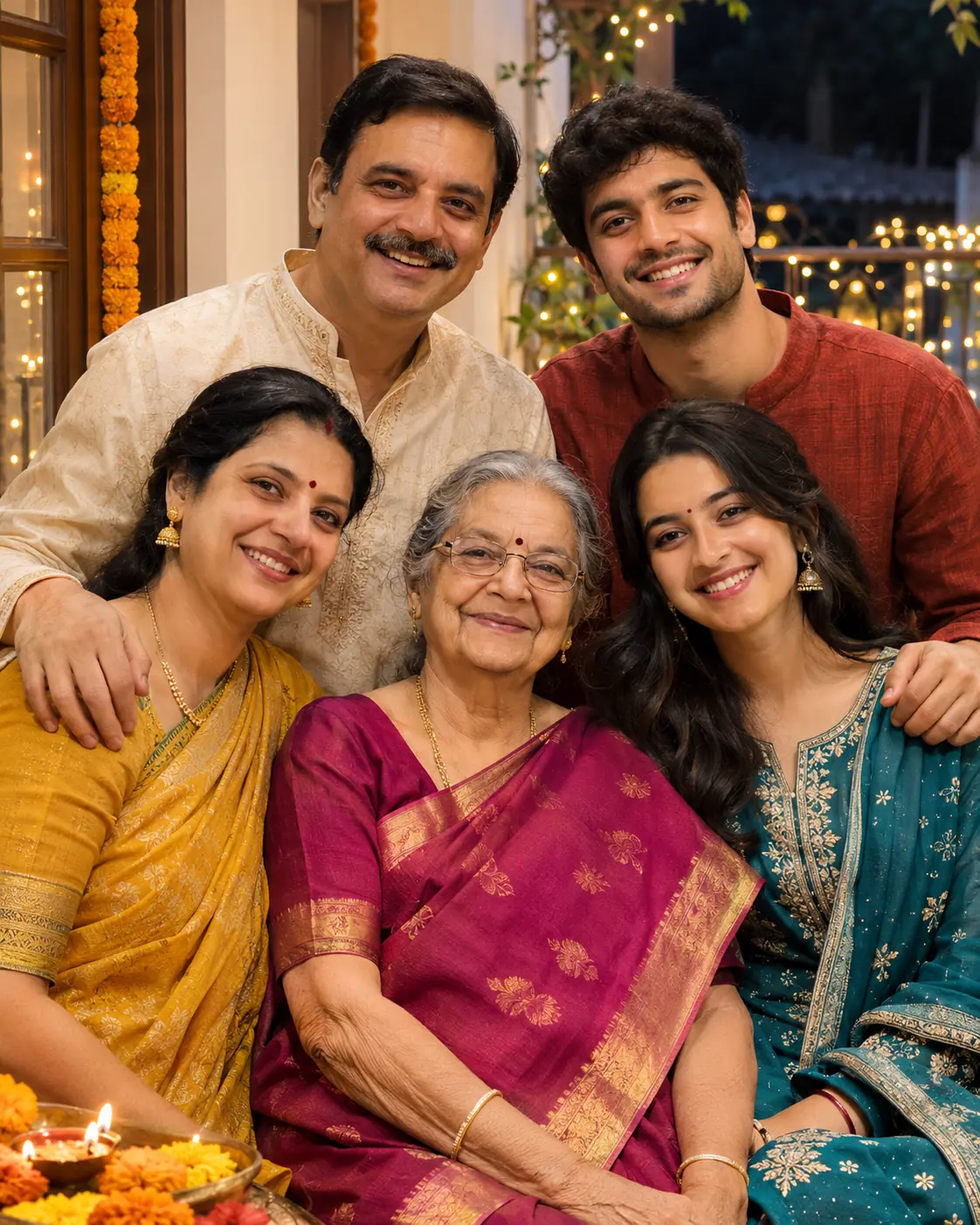
For a family-focused festive image, see our Indian family portrait prompt. For a clean-up workflow before posting, use the Diwali photo restoration guide. Google’s official Gemini image guide explains the current creation and editing workflow.
Make one clean image first. Add design elements second. This keeps the post readable, gives you control over the final message and makes the same visual easier to reuse across Instagram, Stories and WhatsApp.



1 thought on “Diwali Instagram Post AI Photo Prompt for Creators”