

keep face and hands natural in AI photos is the starting point for this simple guide. I keep the first scene clear so the result is easier to check.
The first time I made a festive portrait with AI, the clothes looked perfect but the fingers did not. A small hand mistake can make a beautiful photo feel fake. I learned that “make it realistic” is not enough. The tool needs clear instructions about the face, hands and camera view.
This simple guide shows how to keep face and hands natural in AI photos before you spend time fixing the rest of the image.
Start with this base prompt
Create a photorealistic vertical 4:5 Indian portrait designed to test face and hand realism. Show one adult Indian subject from the waist up in a relaxed three-quarter pose, with one hand resting naturally near the waist and the other holding a small flower. Keep the face human and recognisable, with natural asymmetry, real skin pores, clear but not glassy eyes, believable teeth and detailed hair. Keep the neck, shoulders, arms and wrists connected correctly to the body. Show each visible hand with five separate fingers, correct finger length, natural joints, relaxed palms and no hidden duplicate limbs. Use a simple neutral Indian home background, soft window daylight, a 50mm lens perspective, realistic depth of field and gentle shadows that match the light direction. Keep clothing folds and jewellery physically consistent with the pose. The subject should look calm and real, not like a fashion mannequin. Exactly one person and one flower. No extra hands, fused fingers, missing fingers, crossed wrists, duplicate face, uneven eyes, plastic skin, extreme beauty filter, distorted earrings, text, logo or watermark.Why this works better
Short instructions make the main subject easier to understand. I first create a waist-up photo with one simple pose. After the face and hands look right, I try a wider frame or a more active pose. This saves time because every extra object gives the generator another thing to guess.
In ChatGPT or Gemini, upload a clear reference only when you have the right to use it. Say what must stay the same. If you want a festival scene, add the diyas and colours after the person is stable. Do not add ten decorations in the first line.
Three checks before you keep the image
Zoom into the eyes and fingers. Check that the same person is still present. Then look at jewellery, sleeves and shadows. If one area is wrong, ask for a local correction instead of regenerating everything.
Small repair lines
For hands, add: “show the hands at rest and keep the fingers separated.” For a face, add: “preserve the reference identity and natural asymmetry.” For a plastic look, add: “keep pores and tiny skin texture visible.”
Try a real example
Our motion blur flower portrait prompt shows how one clear visual idea can lead the scene. For a festive example, see the Diwali saree rangoli prompt. Google’s official Gemini guide explains the current image workflow.
Build the pose in two steps
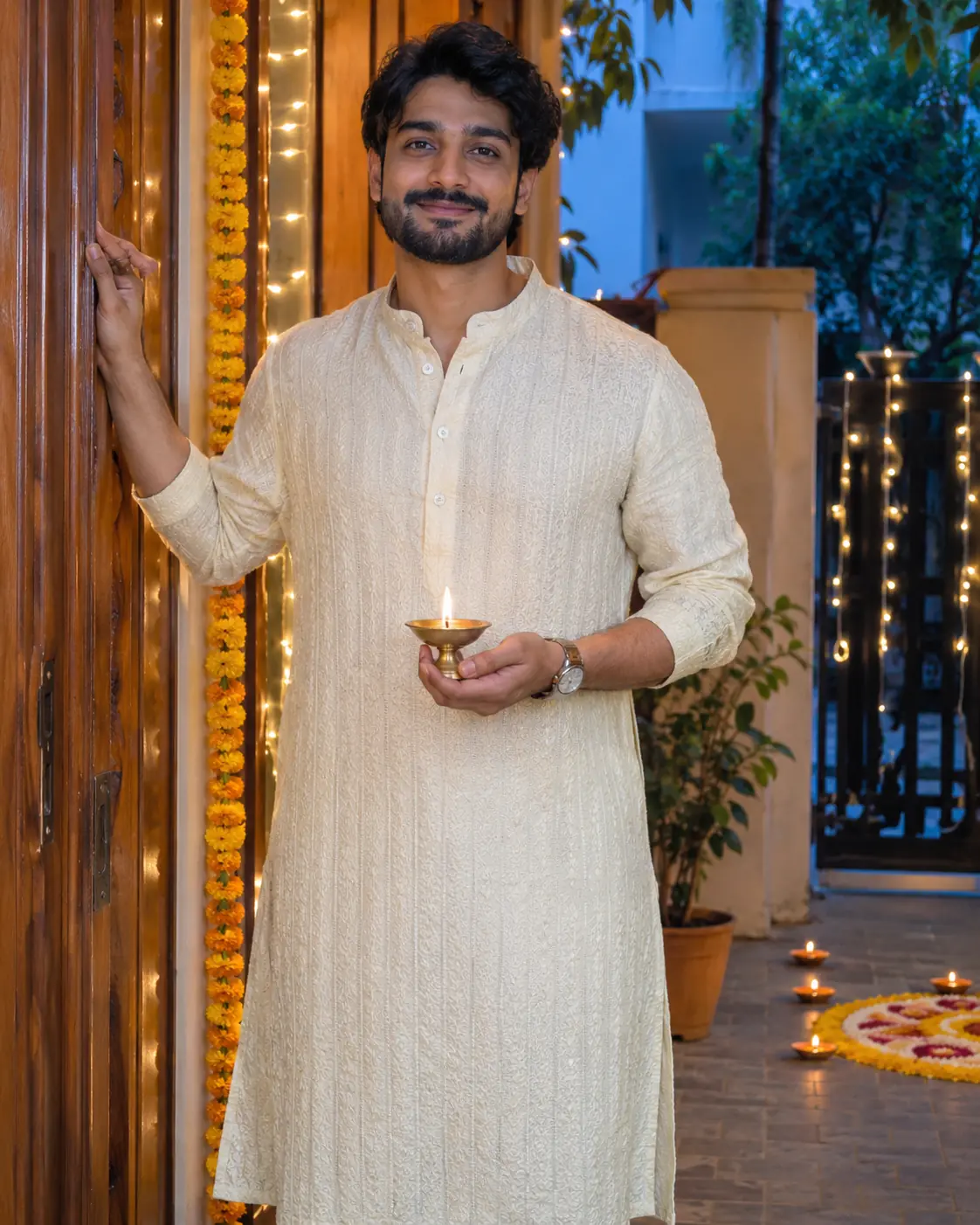
I get better hands when I begin with a simple waist-up pose. Ask for relaxed arms and one visible hand. After the face and fingers look right, try a second version with a diya, flower or phone. This is easier than asking for an active full-body scene at the start.
A reference photo with a clear face and even light helps. Tell the tool which details must not change. If the eyes look too perfect, add natural asymmetry and real skin texture. If the fingers join together, ask for an open relaxed hand and a slightly wider camera crop.
Use a final human check
AI can miss small details even when the picture looks good at first. Zoom in, compare the face with the reference and check both hands. Keep the version that feels like a real person, not just the sharpest version.
Try the same person with two quiet poses before adding movement. This gives you a natural comparison and makes mistakes easier to spot. Keep the best version only after checking both hands and the eyes at full size.
The small workflow that saves me from fake-looking results
When I make a portrait, I do not ask for the full scene in one step. That is where most face and hand mistakes begin. I first ask for a calm waist-up frame. I check the eyes, mouth, jawline and both hands. Only after that I add the flower, diya, phone or festive background. This simple order gives the image model one clear job at a time.
- Upload a clear reference image that you are allowed to use.
- Describe the person, camera crop and pose in one short paragraph.
- Ask for one main object only.
- Check the result at full size before adding more detail.
- Make one local correction instead of rewriting the whole scene.
In ChatGPT or Gemini, tell the tool what must stay unchanged. For example, say that the face shape, hairline and skin tone should remain natural. Then describe the new clothes or location. This is more useful than writing “make it perfect.”
Use one correction at a time
If the face looks right but the fingers are joined, do not add five new instructions. Write a small repair line such as: “Keep the same face and pose. Repair only the visible right hand with five separate fingers, natural joints and soft relaxed movement.” If the skin looks plastic, write: “Keep the same identity and lighting. Restore small natural skin texture without adding harsh pores.” If the eyes look uneven, ask for a gentle eye correction while keeping the original expression.
Small edits also protect the part of the image that already works. A complete restart can change the face, jewellery and clothing at the same time. That is why I save the best version before trying another correction.
Prompt variations for common photo situations
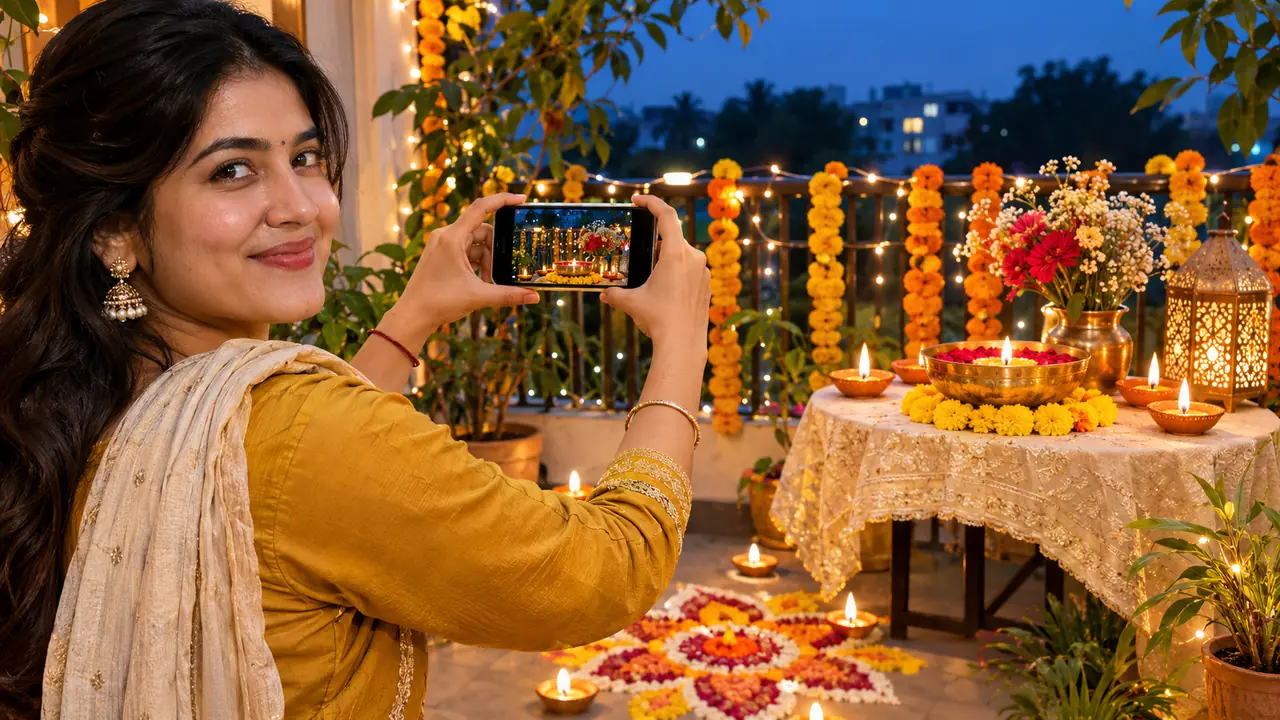
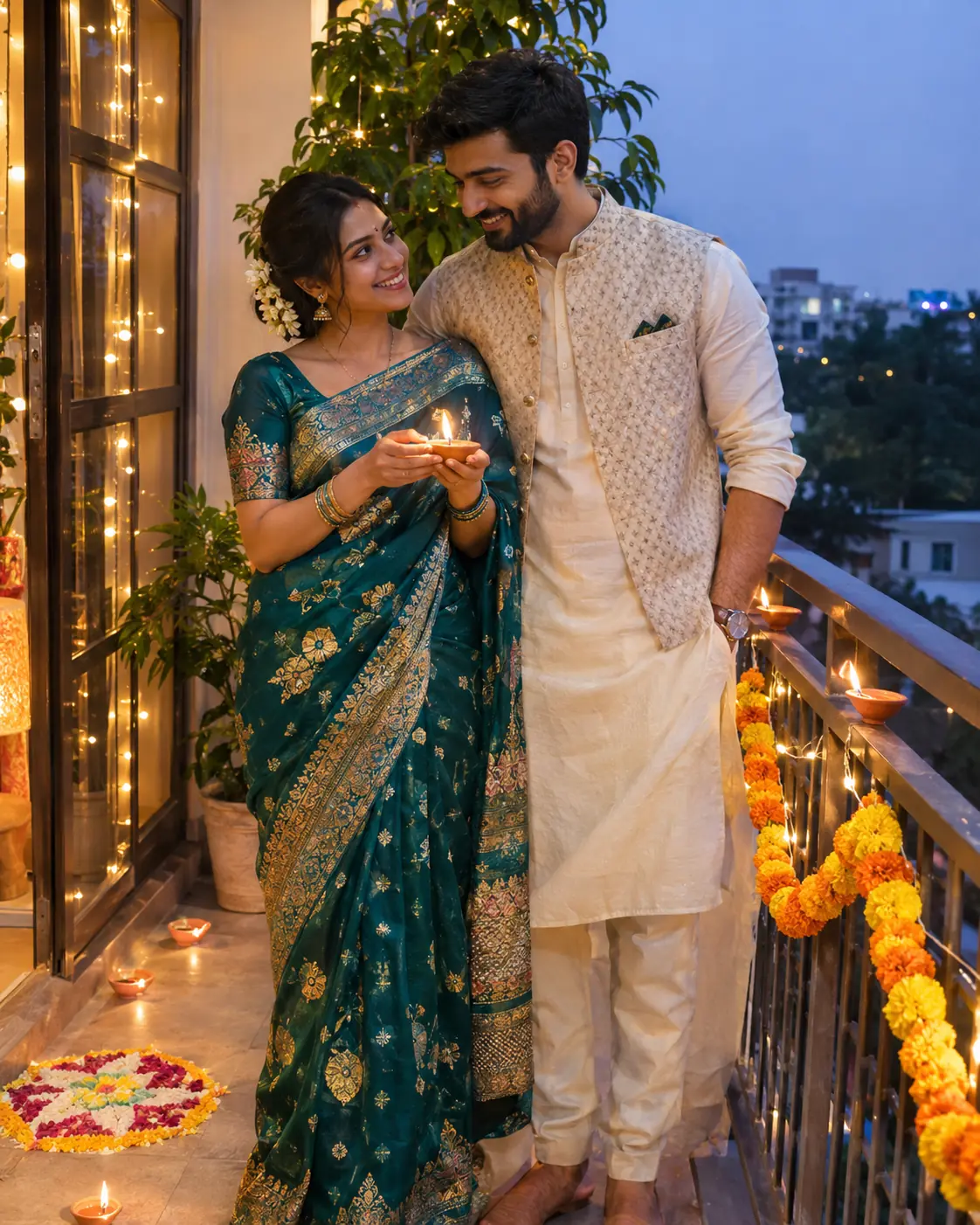
For a mirror selfie, replace the flower instruction with a phone held in one hand. Keep the phone away from the eyes and ask for a normal wrist bend. For a sitting portrait, say that both feet and knees should follow the same body direction. For a festive photo, add one diya or a small rangoli after the face is stable. For a close crop, ask for the full eyes, nose and mouth to stay inside the frame. These small scene changes give the tool a clearer target without repeating the same full prompt.
Why the reference photo matters
A reference with even light is easier to follow than a dark selfie with a strong beauty filter. Use one front-facing image when identity matters. Avoid mixing several people in the same reference. If the tool changes the face, describe the details in plain words: round or sharp jaw, short or long hair, light beard, small earrings or no jewellery. Never ask the model to copy a real person if you do not have permission to use that image.
Quick troubleshooting checklist
- Extra fingers: move the hand slightly away from the body and ask for an open relaxed palm.
- Face changes: repeat the identity and crop instruction before describing the background.
- Wax-like skin: remove words such as “flawless” and request soft natural texture.
- Broken jewellery: use one simple accessory first, then add detail in a second edit.
- Wrong crop: mention the exact output ratio, such as 4:5 portrait, before the camera angle.
Frequently asked questions
Which tool should I use?
Use the image tool you already understand. ChatGPT and Gemini both work better when the instruction is clear and the reference is sharp. The tool name matters less than the order of the instructions.
Should I always use a negative prompt?
A short negative line is helpful for repeated problems such as extra fingers, duplicate faces or text. It cannot repair every mistake. Check the final image yourself.
Why does the result change after one edit?
Generative tools may redraw nearby details during an edit. Keep the best version, make one change at a time and avoid adding unrelated objects in the same request.
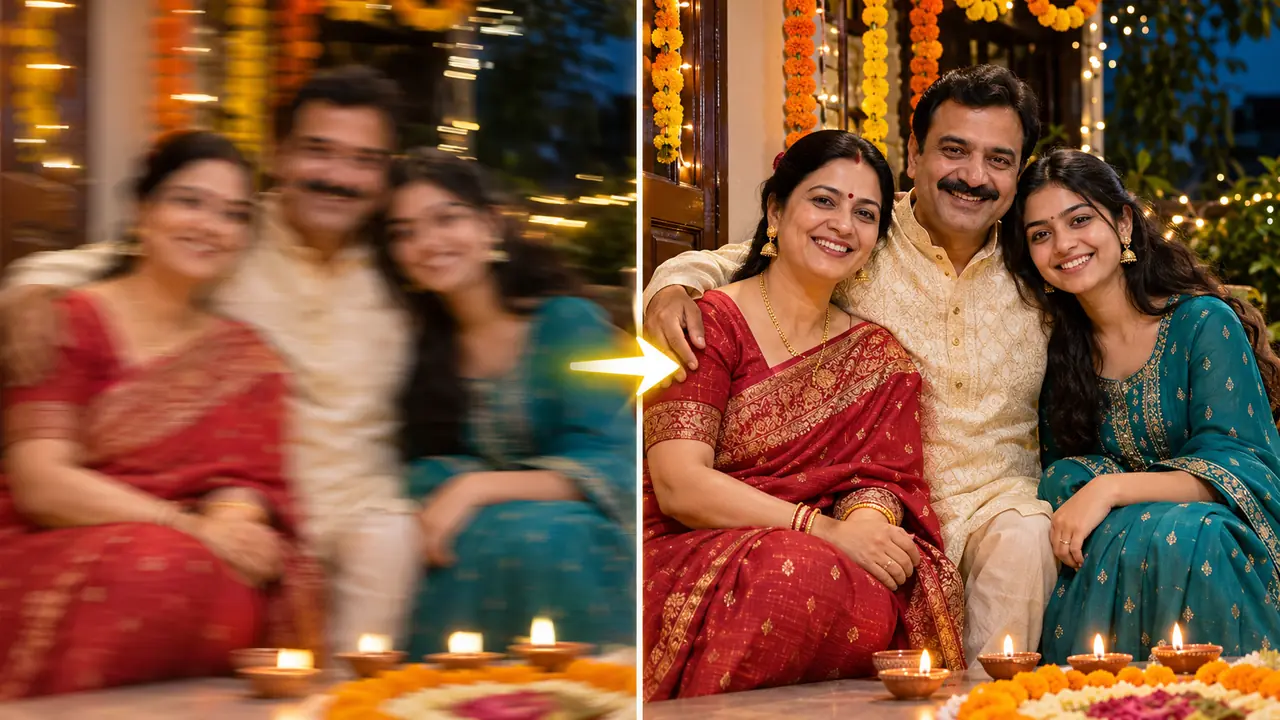
For a movement-based portrait, you can also study our motion blur flower portrait guide. If the main problem is a soft or damaged festive photo, use the Diwali photo fix guide. Google’s official Gemini image guide is useful when a tool update changes the image workflow.
Do one final check at full size. Look at both eyes, both hands, the hairline and the shadow direction. A natural photo is not the one with the most effects. It is the one where the person, pose and light agree with each other.


3 thoughts on “Keep Face and Hands Natural in AI Photos”