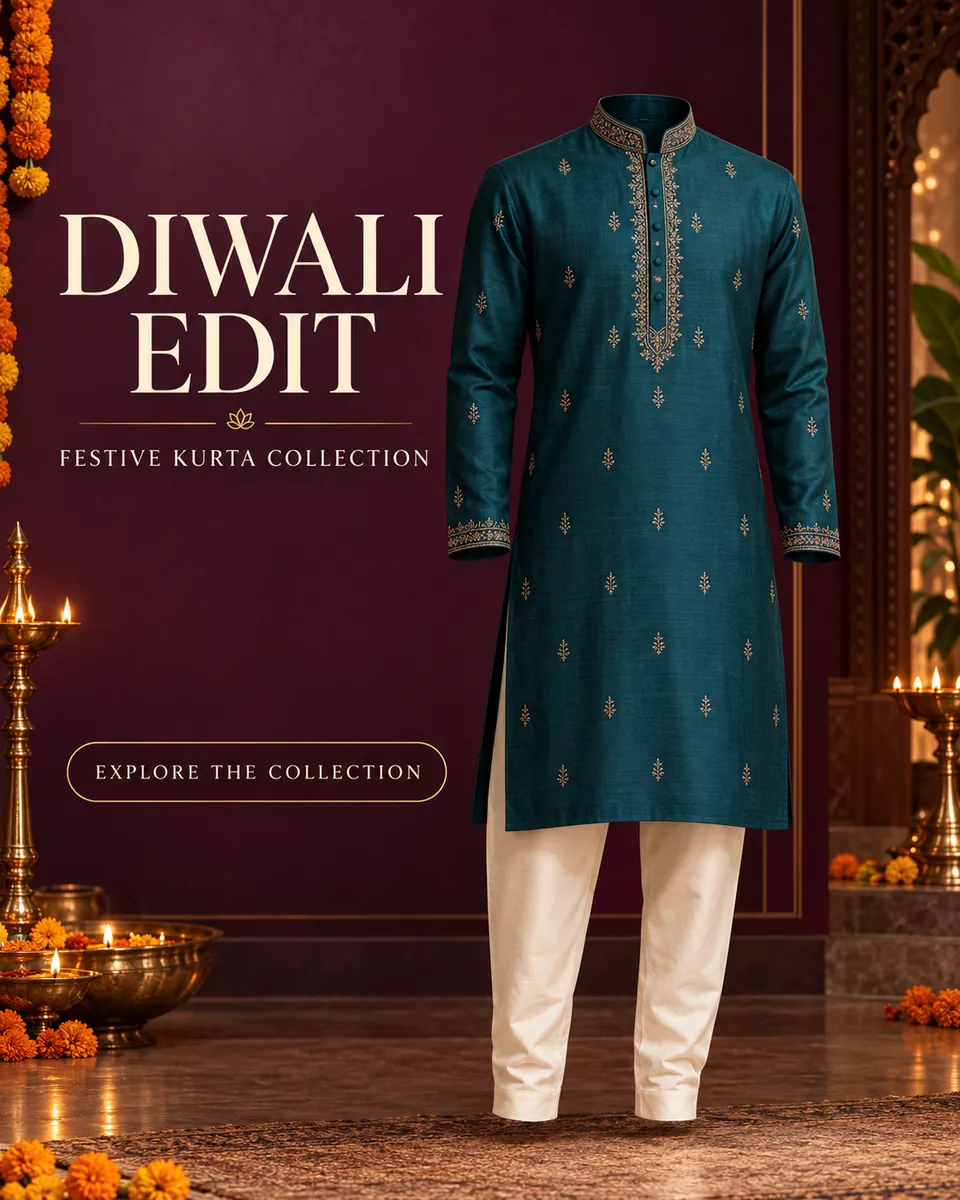
Your shop has a good festive collection, but a crowded poster can hide the clothes. This Diwali sale poster AI prompt gives the outfit most of the space, then adds a short headline and one clear action. The example uses a plum background and teal kurta, with no invented discount or brand claim.
Example note: The design example was generated with ChatGPT using a fictional outfit. It is not a product listing. For a real shop, upload an actual product photo, use truthful offer details and check that the garment stays accurate.
Copy the Diwali sale poster AI prompt
Design a premium vertical 4:5 Diwali clothing-shop social poster. If I upload a product photograph, use it as the strict garment reference: preserve its exact colour, cut, collar, buttons, embroidery and visible fabric details. Without a product reference, create a clearly fictional deep teal kurta and ivory trousers as a design example. Make the outfit large at centre-right on an invisible mannequin, with realistic fabric folds. Use a rich plum background, restrained gold accents, a few marigold details near the edges and a soft diya glow away from the garment. Put large readable ivory text in the upper-left: "DIWALI EDIT". Below it, smaller: "FESTIVE KURTA COLLECTION". Lower-left, one clean call-to-action: "EXPLORE THE COLLECTION". Do not add prices, percentages, brand names, phone numbers or unprovided claims. Keep generous space, clear hierarchy and realistic product lighting. No extra words, watermark, distorted sleeves or text over the outfit.Let the product lead the design
The garment should be recognisable before the viewer reads every word. Give the kurta a large clean shape and keep decorations near the edges. A few marigolds and warm lights suggest Diwali without covering the sleeves or collar.
Check the poster at thumbnail size. If only the lamps or headline stand out, make the outfit larger. If the sleeves merge into the background, improve contrast rather than adding more decoration.
Use a real garment reference
Upload a clean product photograph with the collar, sleeves and hem visible. Label product and style references separately if your editor accepts several inputs. The mood board should guide the background, not replace the item you sell.
Compare the generated outfit with your actual stock. Check the shade, button count and embroidery. If AI changes these details, place a cutout of the real garment into the finished background in a design editor instead.
Keep the headline readable
The sample uses one headline, one description and one action. Long paragraphs become tiny on a phone. Reserve a clean footer for contact details if needed, then add your exact address and number after checking the artwork.
Read every generated letter. Text can look right at first glance and still contain spelling errors. If a phrase keeps coming out wrong, generate the artwork without words and add clean typography separately.
Show only genuine offers
The example intentionally contains no discount percentage. Add prices, sale dates and savings only when they are accurate for the promoted items. Put important conditions somewhere customers can read them.
Remove invented best-seller badges, star ratings or stock warnings. Image generators sometimes add these to ad-style layouts. A believable design should not create evidence or claims that the business cannot support.
Balance the colours and lighting
Plum gives ivory text contrast, while teal keeps the outfit visually separate. Gold works best as a small accent. A bright glow across the chest can change the apparent product colour, so keep it behind or beside the garment.
Inspect the collar construction and sleeve edges. They should stay crisp enough to assess the clothing. Avoid strong smoke or sparkle effects covering fabric details.
Create the right social crop
Start with 4:5 for a feed image. For a 9:16 story, request a new layout with more vertical space rather than stretching the entire poster. Keep important text away from interface overlays.
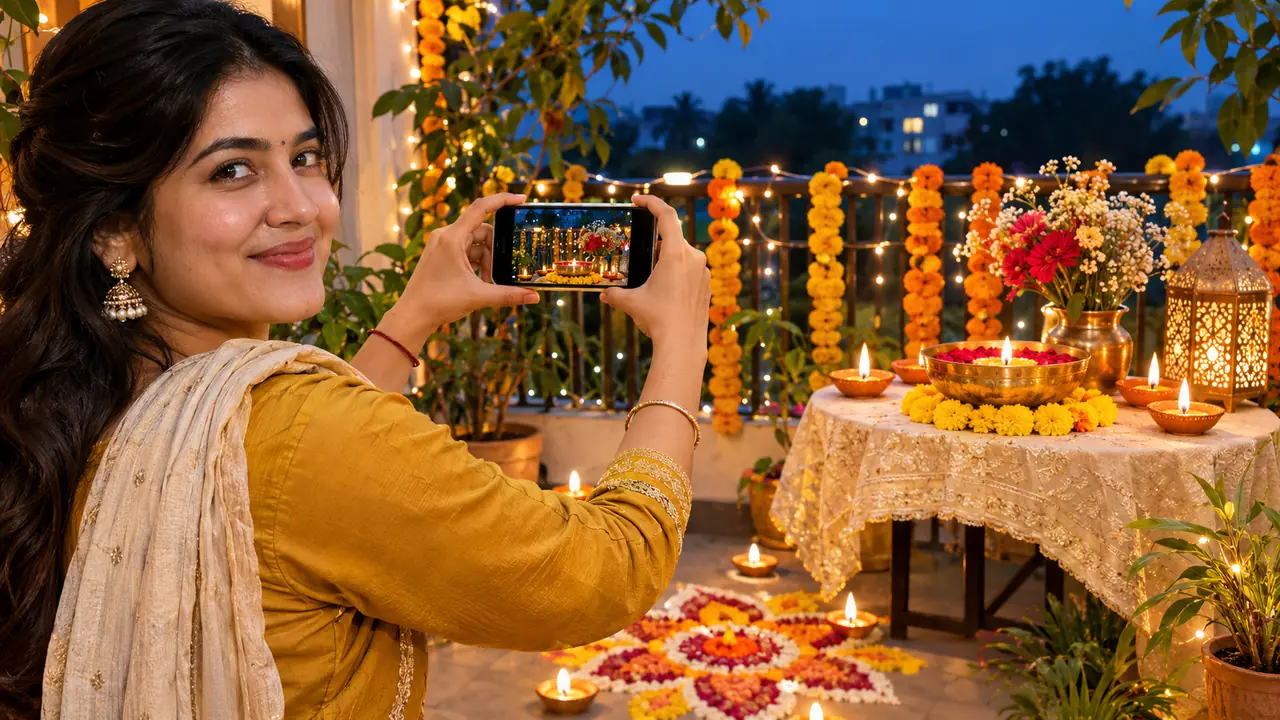
For portrait inspiration beside the campaign, see our teal kurta Diwali portrait and emerald saree Diwali look. Those generated examples do not imply a shop sells the same garments.
Generate and inspect before posting
Upload your product photo in an image editor that supports references, paste the prompt and review the first output. Check product fidelity first, then spelling, crop and lighting. Change one visible problem at a time.
Google’s official image generation and editing guide explains the Gemini workflow. Our example was made with ChatGPT, so the same prompt may behave differently across tools. Keep a clean copy of your product image for accurate finishing.