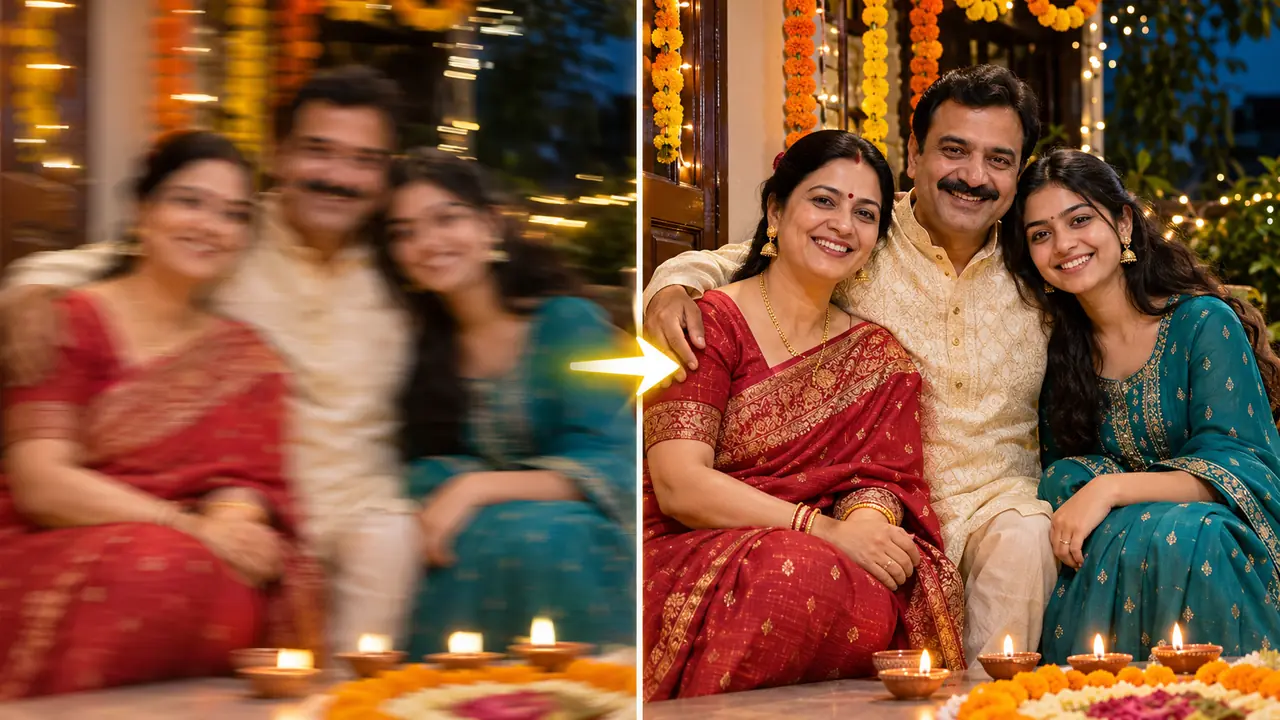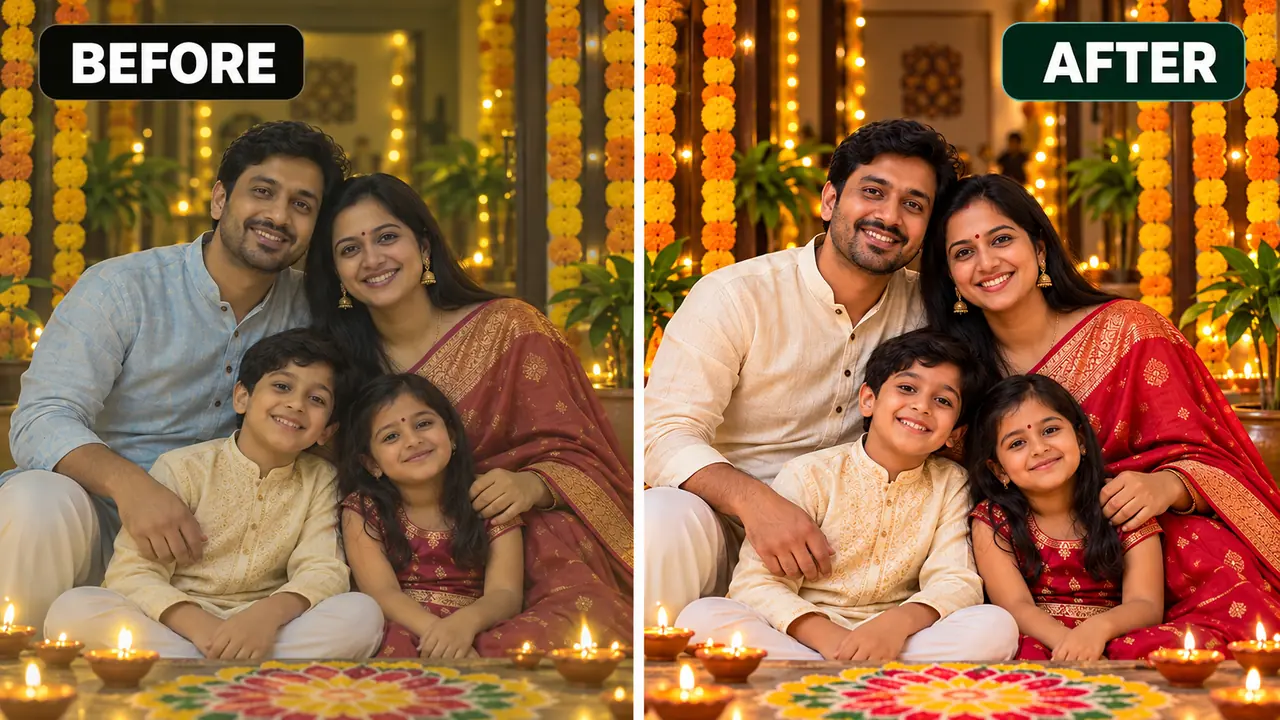
The lights behind you look lovely, but your face is too dark. Evening photos often have this problem: bright decorations get the attention while the person stays in shadow. You can try to fix dark photos with an AI prompt when the source still contains usable detail. The aim is a clearer version of your photo, with the same face and atmosphere.
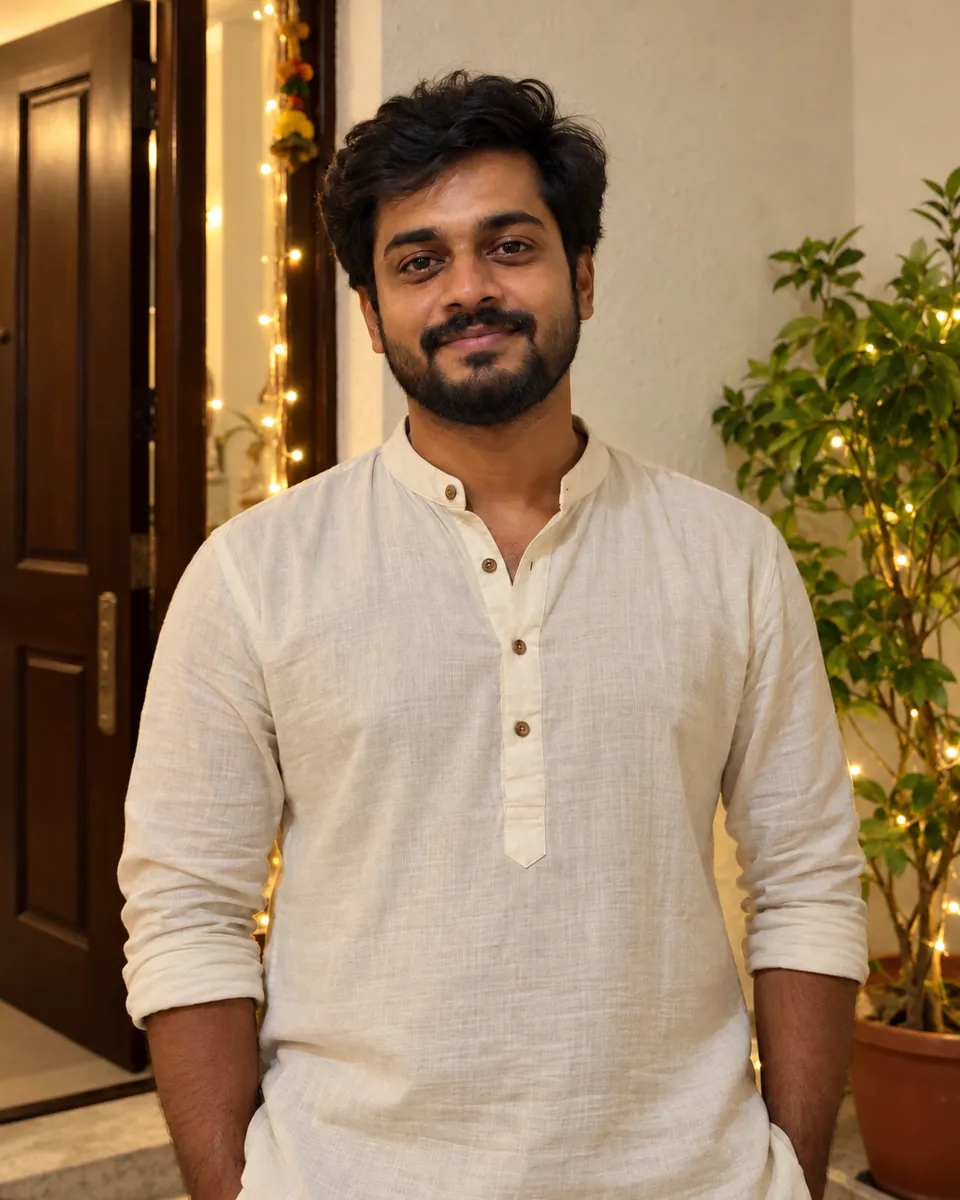
Example note: We created an intentionally dark input image with an original adult model, then used a separate ChatGPT image-editing pass to lift the exposure. The featured image is that edited result. This is an illustrative test, not a customer photo. AI can change details, so compare every edit with its source.
Copy the dark photo lighting fix prompt
Edit the uploaded photograph to correct underexposure only. Keep the same person, actual age, facial structure, expression, hair, skin tone, clothing, pose, crop and background geometry. Lift shadow exposure on the face and kurta gradually so existing details become readable. Reduce the excess yellow colour cast while retaining warm fairy lights in the background. Preserve natural skin texture, believable shadow depth, original fabric seams and individual skin tone. Reduce low-light colour noise gently without smoothing the face into plastic. Protect highlights so lights keep their shape and the cream kurta retains texture. Do not add a different light source, replace the face, invent jewellery, change the body or rebuild the scene. If a region has no recoverable detail, avoid inventing sharp features there. Keep the original aspect ratio. No text, watermark or beauty filter.Start with the original photo
Upload the original phone file if possible. A screenshot or heavily compressed messaging copy may already have lost texture. Save an untouched copy before you edit. For a mild exposure problem, ordinary exposure and shadow sliders may preserve the source more faithfully than generative editing.
If a face is completely black or badly blurred, a tool cannot reliably recover the actual missing features. A new sharp-looking face may contain invented detail. This prompt is most useful when you can already make out the eyes, nose and expression in the darker source.
Lift the face without turning night into day
Ask for a small shadow lift rather than a new cinematic lighting setup. The darker cheek should still have a little shadow. If the face becomes a flat bright patch, request less lifting and the original direction of light.
In our example, the cream kurta and face became easier to read while the doorway, plant and warm lights remained recognisable. The output still looks like a warm evening scene. The edit is not perfectly neutral, which is a useful reminder that one pass may not satisfy every colour preference.
Protect lamps and light clothing
Look at the brightest fairy lights and the shoulder of the kurta. If the lights become large white blobs or the fabric loses its seams, the correction has gone too far. Ask to protect highlights while adjusting only the darker areas.
Cream clothing should stay cream, with visible folds. A light garment turning pure white can hide the change in texture. Compare the collar buttons, seams and sleeve edges before accepting the result.
Check identity after every pass
View the source and output at the same size. Compare the eyes, nose, jaw, hairline and beard shape. Brightness changes can alter how a face appears, but a correction should not slim the cheeks, redesign the smile or change the hairstyle.
If the face drifts, return to the untouched original and ask for a lighter correction. Repeatedly editing an already changed output can move it farther from the real person. Do not treat a more attractive face as proof of a better repair.
Reduce noise gently
Low-light photos may show coloured speckles in dark areas. Strong smoothing can remove these while also wiping out pores and fabric weave. Request mild colour-noise reduction and keep a little grain when that gives a more believable result.
An 8K label does not mean the source contained that amount of information. New sharp edges may be generated. Judge the edit by recognisable features and natural texture rather than the advertised resolution.
Make the next request specific
If the face is clear but yellow, ask to reduce yellow on the skin while keeping the background lights warm. If the kurta is too bright, ask to restore cream texture without darkening the face. Change one visible issue at a time.
Open an editor that accepts image uploads, add the original photo and paste the prompt. Google’s official image editing guide explains the Gemini workflow. Our example was made with ChatGPT; tools and accounts can produce different results.
Save a version that still feels like your photo
Check the result on a phone with normal screen brightness. Keep a separate edited file and preserve the original. Avoid adding strong filters after the correction if they bring back orange skin or crushed shadows.
For a newly generated scene rather than a repair, try the Diwali teal kurta portrait prompt or the black kurta festive look. Those change the outfit and setting; this guide aims to preserve them.