
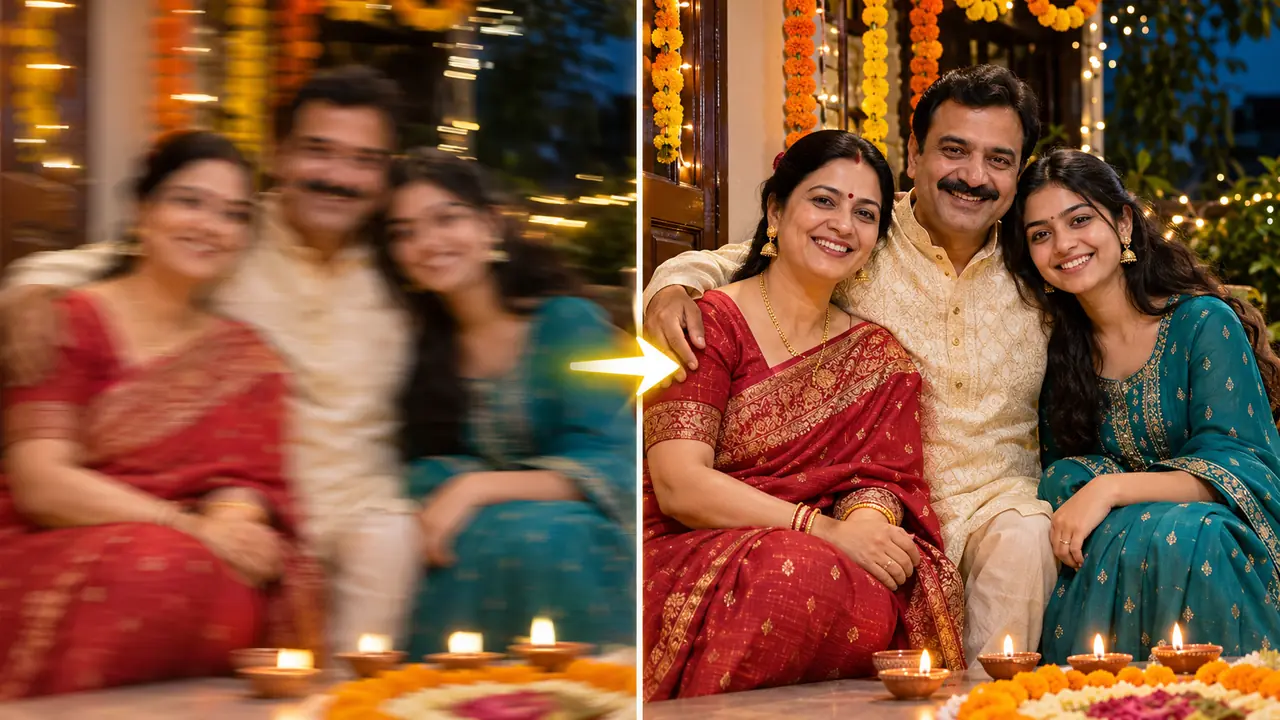
fix blurry Diwali photo with AI prompt is the starting point for this simple guide. I keep the first scene clear so the result is easier to check.
Last Diwali, I found one old family photo that looked soft and shaky. The moment was lovely, but the faces were hard to see. I did not want a plastic filter. I wanted the same memory, only clearer.
This fix blurry Diwali photo with AI prompt helps you clean a weak photo without changing the people in it.
Copy the repair prompt
Restore the uploaded original Diwali photograph as a careful photo repair, not a new image. Preserve the exact identity, face shape, age, skin tone, hairstyle, clothing, jewellery, body position, family relationships, home background and original crop of every person. Remove only mild camera shake, soft focus, compression noise and low-light grain. Rebuild natural eye detail, hair strands, saree or kurta texture and small diya highlights without inventing new features. Keep real expressions, natural skin pores and the original Indian home atmosphere. Protect bright lamp flames and dark shadows so the result does not look over-processed. Keep every person in the same place and keep the same number of people. Correct minor blur with realistic local detail, not an artificial beauty filter. Do not change a face, age a person, add a smile, replace clothing, move jewellery, create a new background, remove a family member or add extra objects. No extra fingers, new eyes, waxy skin, sharpened halos, fake bokeh, text, logo or watermark. Output a clean high-resolution version of the same photograph and preserve its original aspect ratio.How I use it
Open ChatGPT or Gemini and upload the original image first. Then paste the prompt. Tell the tool which part is blurry if the whole photo does not need repair. I normally ask for a natural result before asking for more sharpness.
Use the original file, not a screenshot from a chat app. A larger file gives the tool more real detail to work with. Keep a copy of the original before you download the repaired version.
Quick fixes when the result feels wrong
If a face changes, add: “identity must stay unchanged.” If the diyas become too bright, add: “protect the original highlights.” If the background is invented, add: “edit only the blur and noise.” One small instruction at a time is easier to check.
Helpful guides
For a new festive scene, see our Diwali family photo prompt. For a different clean-up task, try our remove acne photo prompt. Google also explains current image features in its official Gemini guide.
Compare before and after carefully
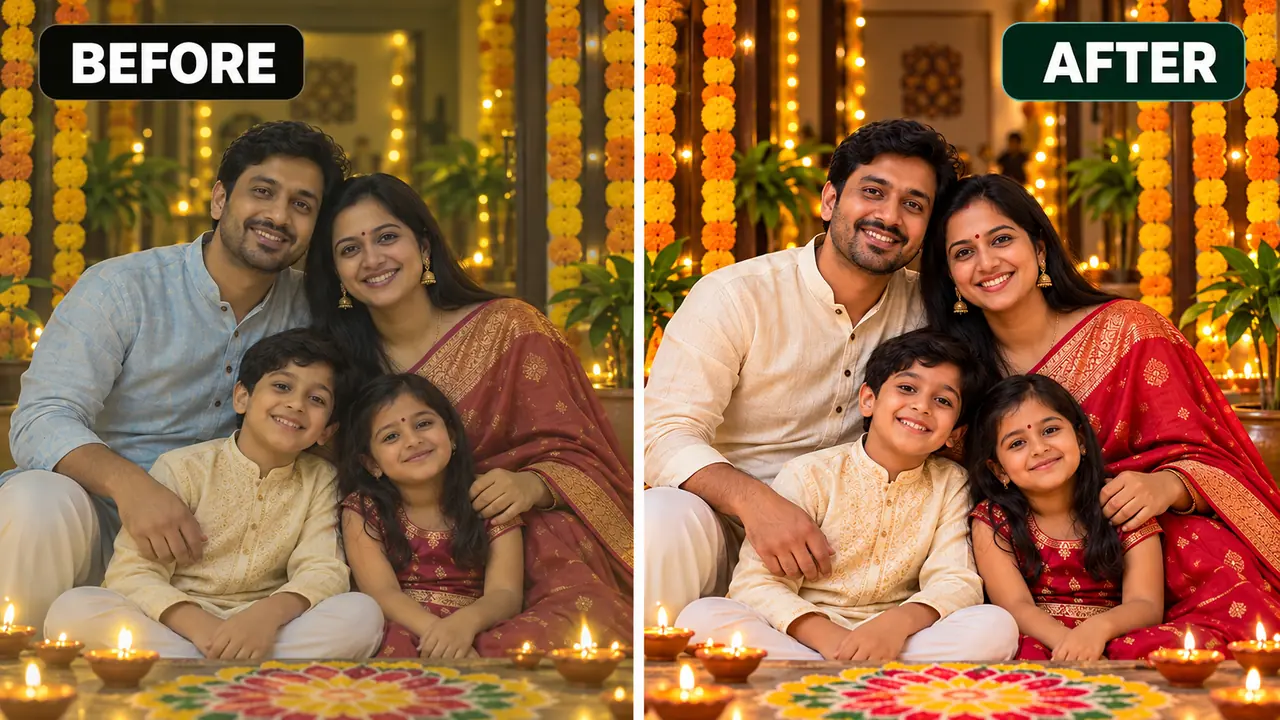
Place the repaired image beside the original. The face should be clearer, but the person should still look like the same person. Check the eyes, teeth, bindi, jewellery and the edge of the saree. These small areas show when an AI tool has changed more than the blur.
If the original is very small, do not ask for a completely new background. Ask for gentle restoration and let the soft parts stay soft. A little natural grain can look better than an over-sharp plastic face. For a private family photo, remove the upload from the tool later if its settings allow it.
Keep the memory honest
The best repair brings back detail without inventing a new event. Save both files and write down which version is the original. This makes it easier to share the restored photo with family without losing the real memory.
A restored photo should still show the same real moment. If the tool adds a new object or changes a face, return to the original and reduce the instruction. Gentle repair is usually safer than a dramatic remake.
Choose the repair level before you start
Not every blurry photo needs the same repair. If the people are clear but the background is soft, ask for background cleanup only. If the whole frame has camera shake, ask for gentle detail recovery. If the file came from WhatsApp, first find the original camera file because repeated compression removes real information.
I keep three versions when a family photo matters: the untouched original, the first AI repair and the final version I decide to share. This makes it easy to compare the face and the small Diwali details. It also stops me from losing the original by mistake.
A simple restoration workflow
- Crop nothing before the first repair. Let the tool see the complete frame.
- Tell it whether the problem is shake, soft focus, noise or low light.
- Ask it to protect faces, clothing, diyas and the original background.
- Review the eyes, teeth, fingers, bindi and jewellery at full size.
- If one area is wrong, edit only that area with a short correction.
In ChatGPT or Gemini, avoid words like “make it cinematic” during restoration. Those words can change the mood, colours and faces. Start with “restore the original photograph” and add creative changes only in a separate request.
Different fixes for different blur problems
For motion blur, mention the direction of the movement and ask for natural edges without a hard sharpened outline. For a low-light image, ask for soft shadow recovery while keeping the warm diya glow. For compression damage, request clean edges and natural skin texture, not a beauty filter. For one unclear face in a group, ask the tool to repair that face while keeping every other person unchanged.
Do not ask the tool to invent a closed eye or missing smile. When the original detail is not present, a truthful soft result is safer than a new face. This matters even more for old family photographs.
What to check before downloading
- Every person is still in the same place.
- The number of fingers and hands has not changed.
- Diya flames and fairy lights still have believable light.
- Saree borders, kurta collars and jewellery follow the body.
- The repaired face still matches the original age and expression.
When an AI repair is not the right choice
If the file is extremely small, the face is fully hidden or a person is cut out of the frame, no prompt can recover the exact missing information. In that case, keep the original and clearly label any enhanced version as an AI restoration. Do not present invented details as part of the real photograph.
Small FAQ
Can I repair a scanned print?
Yes. Scan it at the highest setting you have and remove dust gently. Keep the paper edges if they are part of the memory.
Should I upscale before restoring?
Usually start with the original. Upscaling first can make compression marks larger. If the tool cannot read the file, make one clean upscale and then run the restoration prompt.
Why does the colour become too bright?
Diwali lights are already bright. Add a line asking the tool to preserve the original white balance and lamp highlights. Then compare the result with the original beside it.
For identity and hand checks, read our guide to natural faces and hands in AI photos. For a new family scene instead of restoration, see the Indian family portrait prompt. Google’s official Gemini image guide is a useful reference when the editor layout changes.




2 thoughts on “Fix Blurry Diwali Photo with AI Prompt”