
My younger cousin had her college farewell last month. She got ready, took some really nice photos with her friends, but later she messaged me saying she did not want to post any of them. Her skin had some acne that day and the camera flash made it look much worse than it actually was.
Why Photos Show Acne More Than Real Life
In real life, people do not stare closely at your skin. But a camera, especially with flash, captures every small bump and red mark in sharp detail.
This is exactly what happened with my cousin. In person nobody noticed her skin that much, but in the photo every spot was visible because of the bright lighting at the farewell venue.
This is why so many people search for a way to remove acne from photo using Gemini AI. The goal is not to create a fake face, just to remove what the camera exaggerated.
Skin Type Guide Before Using Any Prompt
Before you copy any prompt, it helps to know your skin type, because acne removal works differently for each one. Oily skin with active acne needs stronger blemish removal, but the prompt should still keep the natural skin texture visible.
Dry skin with acne marks and dark spots needs gentle smoothing only. The natural roughness of dry skin should not be removed completely.
Wheatish or medium brown Indian skin needs careful tone preservation. The prompt must make sure the skin does not turn lighter than the original photo. Dusky or dark Indian skin is the trickiest. Most AI tools accidentally lighten dark skin tones. The prompt must clearly say to preserve the original skin tone.
What I Noticed After Testing
I noticed that the word remove completely in a prompt often removes too much, including pores and natural skin lines and what surprised me was how often the AI changed the skin color slightly, even when I did not ask for any color change.
One thing I did not expect was that adding the words preserve natural skin tone actually made a big difference in the final result. I also noticed that prompts which mention keeping the lighting and background the same gave much more believable results.
Prompts To Remove Acne From Photo
For Oily Skin with Active Pimples
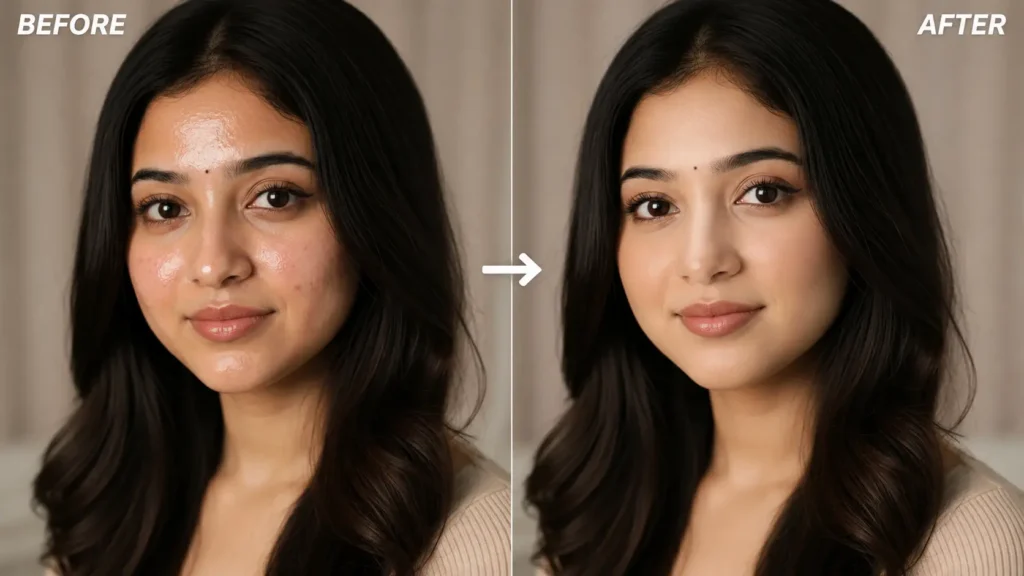
Remove all acne, pimples, active breakouts, blemishes, redness, and uneven skin patches from the face. IMAGE RATIO 1:1, use the uploaded photo as identity reference, preserve exact facial features, bone structure, and expression, no artificial face replacement, preserve natural wheatish Indian skin tone with visible pores and realistic skin texture, do not lighten or whiten skin, no cartoon, no animation, no 3D, no illustration style, keep original lighting, shadow direction, and background exactly as they are, result must look like a good natural skin day, not a filtered or edited photo, ultra realistic, photorealistic, high resolution
This was my first try and it worked well for the redness, but it slightly smoothed the forehead more than I expected. See the result and check the quality and difference in a face.
For Dark Spots and Old Acne Marks
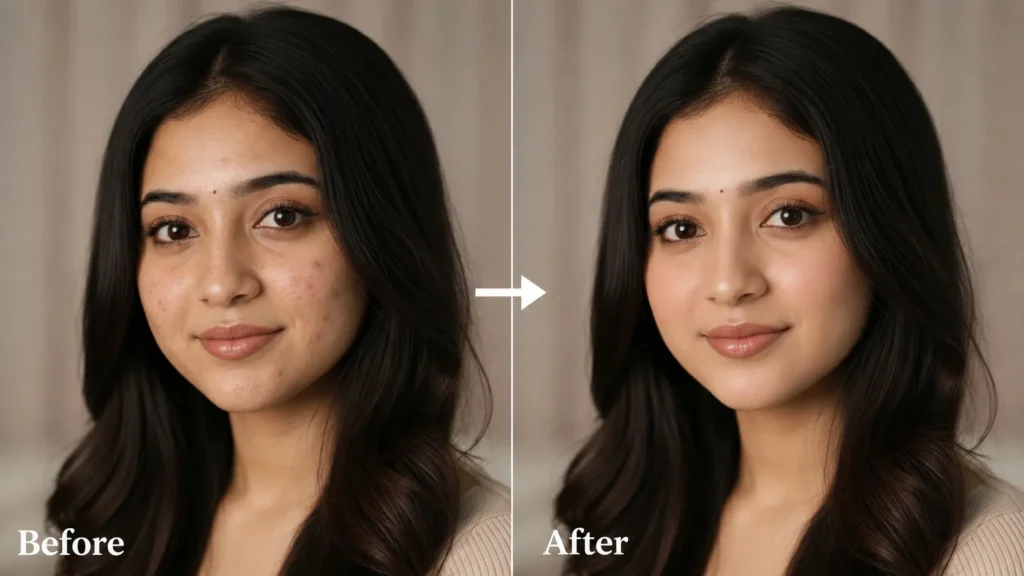
Remove all acne, pimples, active breakouts, blemishes, redness, and uneven skin patches from the face. IMAGE RATIO 1:1, use the uploaded photo as identity reference, preserve exact facial features, bone structure, and expression, no artificial face replacement, preserve natural medium brown Indian skin tone with visible pores and realistic skin texture, do not lighten or whiten skin, no cartoon, no animation, no 3D, no illustration style, keep original lighting, shadow direction, and background exactly as they are, result must look like a good natural skin day, not a filtered or edited photo, ultra realistic, photorealistic, high resolution
This one worked really well on my cousin’s old acne marks near her cheeks. The marks faded a lot without touching the rest of her face.
For Wheatish Skin Without Lightening
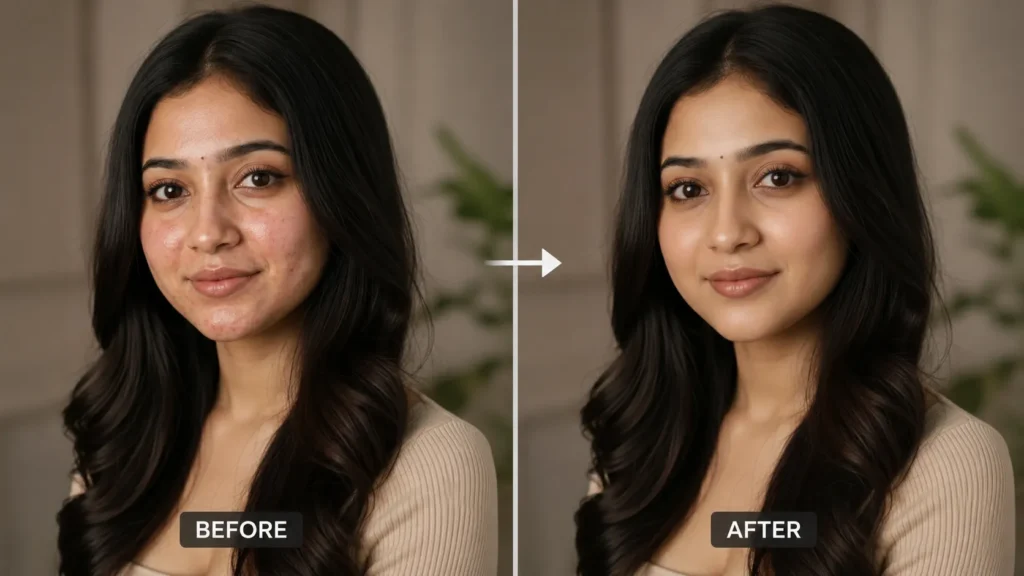
Remove all acne, pimples, active breakouts, blemishes, redness, and uneven skin patches from the face. IMAGE RATIO 1:1, use the uploaded photo as identity reference, preserve exact facial features, bone structure, and expression, no artificial face replacement, preserve natural wheatish Indian skin tone exactly as in the original photo with visible pores and realistic skin texture, do not lighten or whiten skin under any condition, no cartoon, no animation, no 3D, no illustration style, keep original lighting, shadow direction, and background exactly as they are, result must look like a good natural skin day, not a filtered or edited photo, ultra realistic, photorealistic, high resolution
I added the extra line about not lightening under any condition because the basic prompt sometimes made the skin one shade lighter.
For Dusky Skin Tone Preservation
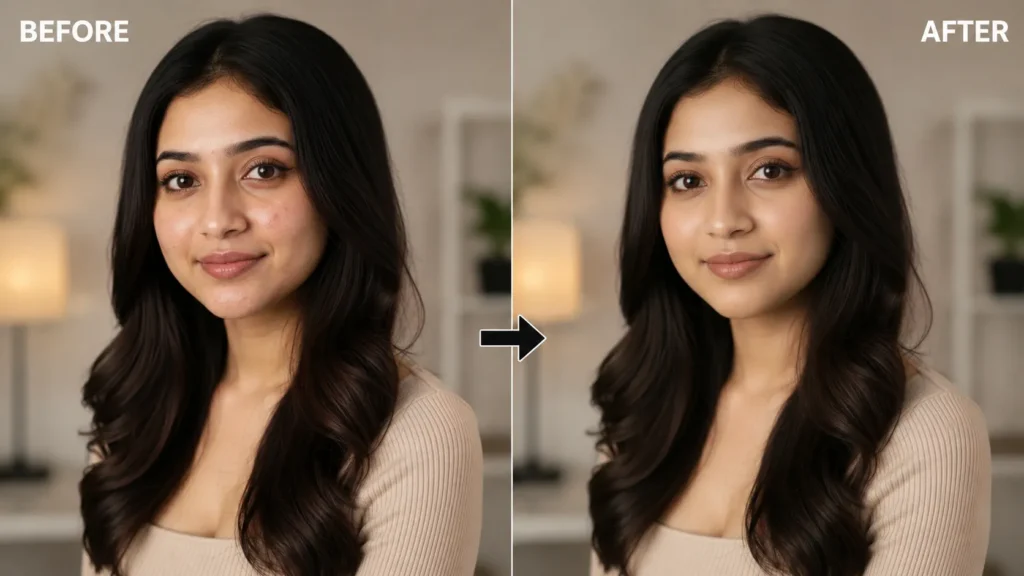
Remove all acne, pimples, active breakouts, blemishes, redness, and uneven skin patches from the face. IMAGE RATIO 1:1, use the uploaded photo as identity reference, preserve exact facial features, bone structure, and expression, no artificial face replacement, preserve natural dusky Indian skin tone exactly as in the original photo, do not change skin color, do not lighten or whiten skin, keep visible pores and realistic skin texture, no cartoon, no animation, no 3D, no illustration style, keep original lighting, shadow direction, and background exactly as they are, result must look like a good natural skin day, not a filtered or edited photo, ultra realistic, photorealistic, high resolution
This prompt was very important for one of my friends with darker skin. Without the strong do not change skin color line, the result came out noticeably lighter than her real photo.
For Mobile Selfie Photos
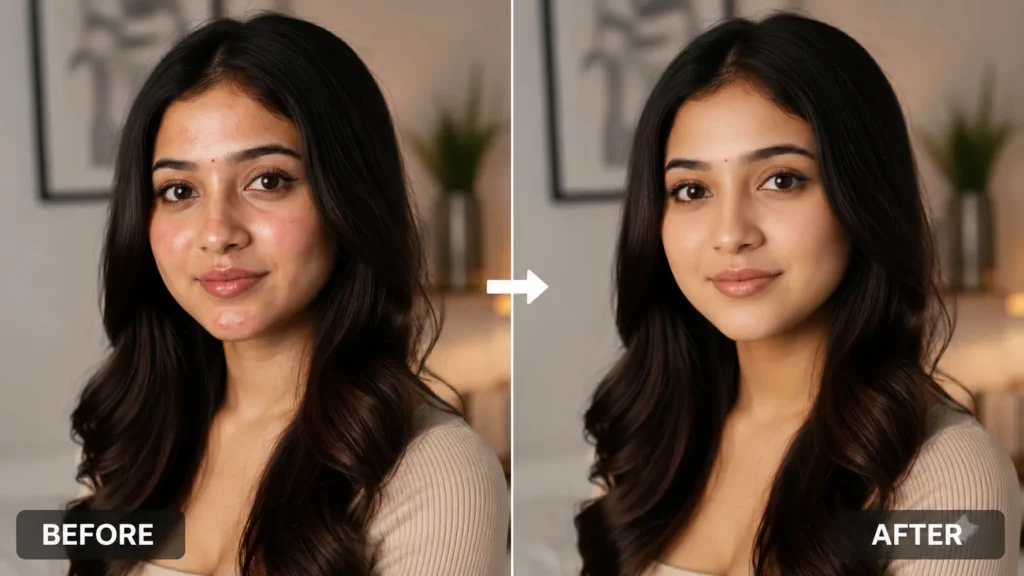
Remove all acne, pimples, active breakouts, blemishes, redness, and uneven skin patches from the face. IMAGE RATIO 1:1, use the uploaded photo as identity reference, preserve exact facial features, bone structure, and expression, no artificial face replacement, preserve natural fair Indian skin tone with visible pores and realistic skin texture, do not lighten or whiten skin, no cartoon, no animation, no 3D, no illustration style, keep original selfie camera lighting, shadow direction, and background exactly as they are, result must look like a good natural skin day taken from the same selfie camera, not a filtered or edited photo, ultra realistic, photorealistic, high resolution
Here is where I had my biggest problem. My first attempt on a selfie photo made the skin look completely smooth, almost like wax, with no pores at all. The face looked like a mannequin. I had to add the part about keeping visible pores and the same selfie camera lighting, and the second result looked much more natural.
For Low Light or Indoor Photos
Remove all acne, pimples, active breakouts, blemishes, redness, and uneven skin patches from the face. IMAGE RATIO 1:1, use the uploaded photo as identity reference, preserve exact facial features, bone structure, and expression, no artificial face replacement, preserve natural medium brown Indian skin tone with visible pores and realistic skin texture, do not lighten or whiten skin, no cartoon, no animation, no 3D, no illustration style, keep the same indoor lighting, warm tone, shadow direction, and background exactly as in the original photo, result must look like a good natural skin day under the same indoor lighting, not a filtered or edited photo, ultra realistic, photorealistic, high resolution
Indoor photos with yellow lighting can look very different after editing if the prompt does not mention keeping the same warm tone. This prompt kept the indoor feel intact.
For Forehead Only Acne
Remove acne, pimples, active breakouts, and redness only from the forehead area of the face. IMAGE RATIO 1:1, use the uploaded photo as identity reference, preserve exact facial features, bone structure, and expression, no artificial face replacement, preserve natural wheatish Indian skin tone with visible pores and realistic skin texture on the rest of the face, do not lighten or whiten skin, no cartoon, no animation, no 3D, no illustration style, keep original lighting, shadow direction, and background exactly as they are, result must look like a good natural skin day, not a filtered or edited photo, ultra realistic, photorealistic, high resolution
This one is useful if most of the acne is in one area only. It avoids unnecessary changes to the rest of the face.
What Plastic Skin Looks Like And How To Fix It
When a result goes wrong, there are some clear signs. The skin looks too smooth with no pores visible anywhere on the face. The face can start looking like a wax statue, especially around the cheeks and forehead. The skin color may also look lighter than the original photo.
Sometimes even the background shadows change slightly, which makes the photo look edited. If this happens, add this line to your prompt to fix it and add visible skin pores, natural fine lines and realistic skin texture back to the face while keeping the acne removed.
Camera Type Matters
Selfie camera photos already compress a lot of skin detail before you even start editing. This is why acne removal on selfies can look too smooth very quickly.
DSLR photos usually have more natural detail in the skin, so the results after using a remove acne from photo Gemini AI prompt tend to look more realistic. If your photo is a selfie, always include the part about keeping visible pores and selfie camera lighting in your prompt.
How To Use These Prompts
First, open the Gemini app on your phone or computer.
Second, upload the photo you want to edit, making sure the face is clearly visible.
Third, copy one prompt from above based on your skin type and photo type.
Fourth, paste the prompt and wait for Gemini to generate the result.
Fifth, check the skin closely. If it looks too smooth, add the pore and texture line mentioned in the plastic skin section and try again.
Common Mistakes
I noticed that using the word completely too many times in a prompt often leads to over editing and many people skip mentioning their skin tone, which can cause the AI to lighten the skin without anyone asking for it.
Some people use very old or low quality photos, which makes it harder for Gemini to understand the original skin texture and i also made the mistake of not checking the background after editing once, since sometimes small shadow changes happen there too.
FAQ: Remove Acne From Photo Using AI Prompt
Will this make my skin look lighter?
It should not, especially if your prompt includes the line about not lightening or whitening skin. If it still happens, add do not change skin color as well.
Can I use this on someone else’s photo?
Yes, as long as you have a clear photo of their face and their permission to edit it.
My result looks like wax. What went wrong?
This usually means the prompt removed too much detail. Add the line about visible pores and realistic skin texture and try again.
Does this work on old acne scars or only active acne?
It works on both. You can mention dark spots and old acne marks specifically in the prompt for better results on scars.
Can I use a group photo or only solo photos?
Solo photos give the most accurate results, since the AI can focus clearly on one face.
When I sent my cousin the edited photo using the wheatish skin prompt, she could not believe it was the same picture. She finally posted those farewell photos with her friends, and she told me it felt good to actually like how she looked in them.